View Online Users |
  
|
View Online Users |
|
Users can now access an "Online users form" to view a list of all currently logged in users.
Click on ‘Tools’ and select “View Online Users” to see a list of all Users logged in to the same repository server.
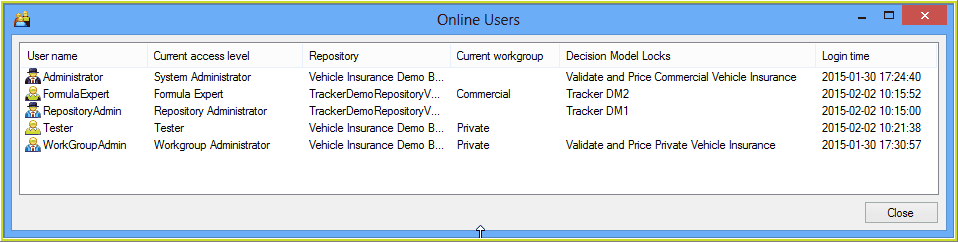
Figure 2-5: View Online Users
1.User Name - the User Name currently logged in to the server.
2.Current access level - the User Role the User is currently logged in to. This determines their level of access. (See User Roles)
3.Repository - name of the repository the User is currently logged in to.
4.Current workgroup - name of the workgroup that the User has used to log in to the repository. (See .
5.Decision Model Locks - the name of the decision model/s that the user currently has open in an 'editable' mode. When a user with rights to edit first opens a decision model, that decision model is locked, so that no other User can edit it at the same time.
Note: Should a number of decision designers wish to work within the same decision model at the same time, they should use the 'Focus' functionality to lock specific decision groups, and then close the decision model palette to make it available to multiple users at the same time. (See Focus)
6.Login time - date and time the User logged in to the server.
System Administrators can forcefully disconnect a user from the server via the 'Online Users' dialog. As this is a forced disconnection, any unsaved work the user might have will be lost. Right-click on the user and select 'Disconnect this user'. Click 'Yes' to confirm the 'Forced User Disconnection Request'.
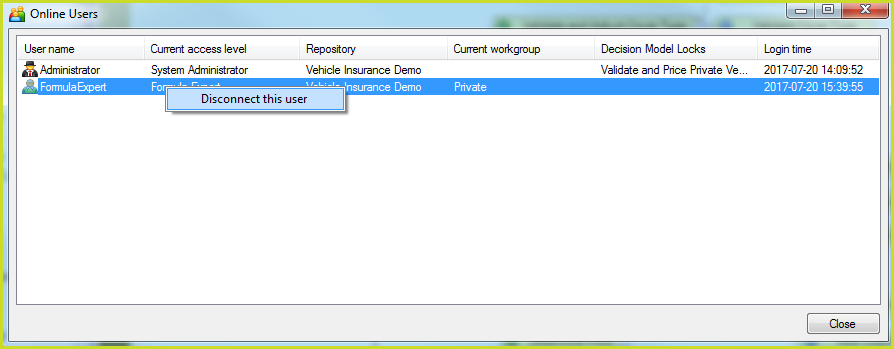
Figure 2-5(a): Disconnect Online User