Creating Decisions and Decision Groups |
  
|
Creating Decisions and Decision Groups |
|
There are three ways to create a new decision group or a decision. In the example below, we will show you how to create a decision group using the Validate and Price Private Vehicle Insurance decision model.
Tip |
The usual and by far the most convenient method is method 1 – simply dragging the context node onto the decision model palette. This uses the mind-mapping metaphor and allows a decision model to be built very quickly. |
STEPS
1. |
Open the Validate and Price Private Vehicle Insurance decision model and schema pane. |
2. |
Click on the node in the schema pane that you wish to be linked to the decision/decision group, and drag it on to the decision model palette – be sure to drag it onto an existing decision group if you want the new decision/decision group to live under that group. |
3. |
Select ‘New decision’ or `New Decision Group' from the dialog box that appears. |
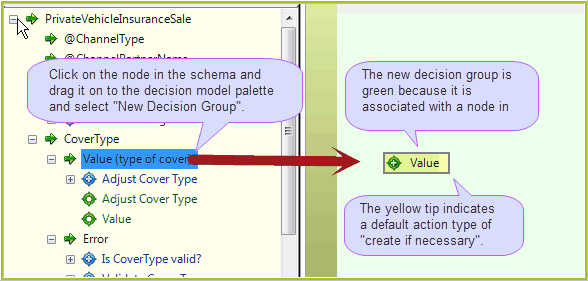
Figure 3-4(a) Dragging a node from the schema
A new decision/decision group appears in the Workspace. You will note that this decision group is automatically named the same as the node, and appears as a green rectangle with square edges. This is because it has context, i.e. it is linked to a node in the schema.
It also has a yellow tip, because the default action when creating a new decision group is the most commonly used action: 'Create if necessary'.
Alternatively, you can create a new decision or decision group by using the Toolbar:
1. |
Open the Validate and Price Private Vehicle Insurance decision model. |
2. |
Click on the arrow next to the ‘New’ button in the Toolbar and select `New decision' or ‘New decision group’. |
3. |
A new decision/decision group appears in the Workspace, coloured white because it does not yet have a ‘context node’. |
Alternatively, you can create a new decision or decision group by using the decision model palette right-click menu:
1. |
Open the Validate and Price Private Vehicle Insurance decision model |
2. |
Right-click on the decision model palette and select `New | New Decision Group' |
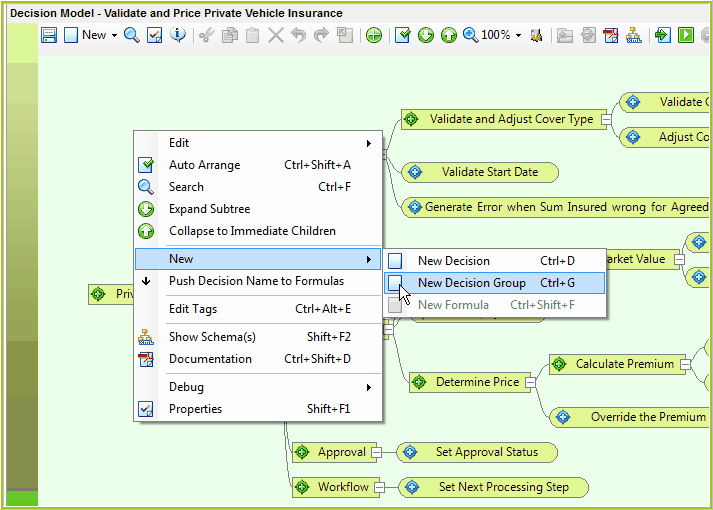
Figure 3-4(b): Creating a new decision group in the decision model
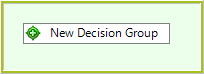
Figure 3-4(c) New decision group shell
A new decision/decision group appears in the Workspace, coloured white because it does not yet have a ‘context node’.
NOTE: It is important to note that a new decision or decision group created using the ‘Alternate’ steps above is incomplete, and requires linkage to a context node. (see Linking Decisions to Schema Nodes).
Tip |
You can save the decision model at any time during the process to preserve your work, but you should certainly before you shutting down the decision model. The IDIOM icon at the top right of the decision model turns aqua when a change has been made but not saved. |