Importing External Table Definitions |
  
|
Importing External Table Definitions |
|
The Table Wizard will help you import table definitions from existing database tables into an IDIOM repository.
STEPS
1. |
Click on Tools | Wizards | Table Wizard > Welcome to the Table Wizard dialog box |
2. |
Click on Next > Select Table Source dialog box |
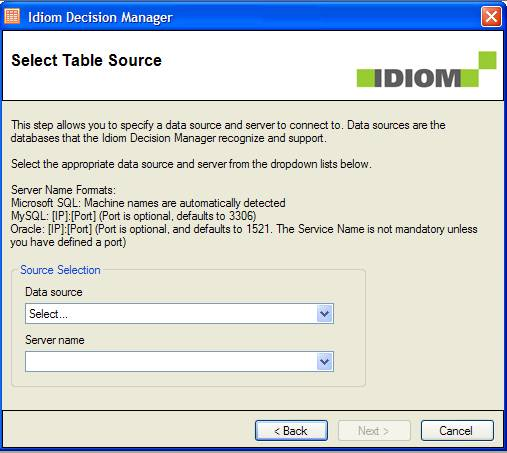
Figure 6-78: Source Selection screen
3. |
Select your Data source from the drop-down box. This box contains a list of the types of databases that are supported by the wizard. At the moment, these include Microsoft SQL Server, Oracle Database Server and MySQL Database Server. |
You also need to enter your server name into the Server name drop-down box (if you are using Microsoft SQL servers these are automatically detected and you can select the name from a drop-down box).
4. |
Click on Next > Authentication screen |
5. |
Specify whether you will be using Windows Authentication or Server Authentication by clicking the appropriate radio button. •If you choose to use Windows Authentication, the same login you use for windows will be used and the Username and Password details will be greyed out. •If you choose to use Server Authentication, you will need to fill in your Username and Password. |
6. |
Click on Next |
IDIOM now attempts to authenticate your login details and if these are correct will establish a connection with the database server. A list of databases that are on the server will now be available from the drop-down menu.
7. |
Select your database from the drop-down list in the Database Selection screen. IDIOM will then populate the tables. |
8. |
Click on Next > Table Definitions screen |
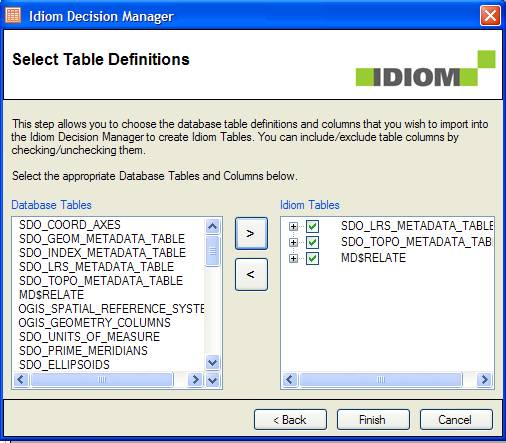
Figure 6-79: Table Definitions screen
9. |
Select the table definitions you wish to import into IDIOM then click on |
10. |
Click on Finish |
Your imported table(s) will appear under Tables in the IDIOM Explorer pane.
11. |
Check that every table that you have chosen has at least one primary key column. |
You can change any column into a key column using the drop-down box under the Column Type heading.
NOTE: You can remove a table from the IDIOM Tables column by selecting the table and clicking on . You can also right-click on the table name in the IDIOM Tables column and select Remove from the drop down menu.
