Setting up the Test Environment |
  
|
Setting up the Test Environment |
|
IDIOM will generate and execute rules in either Java or C#.
In order to do so, IDIOM must be advised of various environmental settings. The configuration pane will attempt to locate some these settings for you. If it fails to do so, you most likely have a non-standard environment and you will have to manually select the appropriate files.
There are however a few settings that will require manual set-up prior to the first test. These are the Java settings, and the folder where you would like the generated code from the Test Executive to be placed.
STEPS
1. |
Click on the Setup Environment button at the top left of the Test Executive pane |
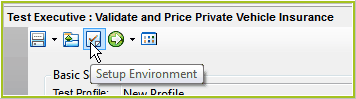
Figure 7-7(a): Setup Environment button in the Test Executive pane.
2. |
IDIOM opens the Java Settings tab in the Options dialog box. Use the browse button |
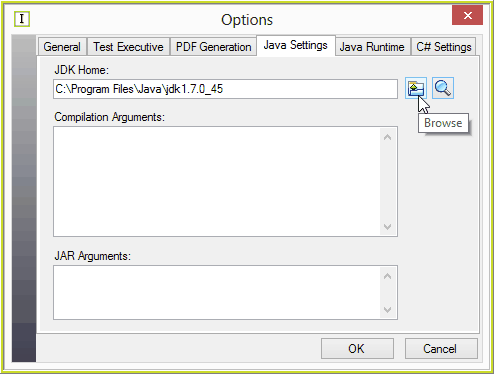
Figure 7-7(b): Java Settings dialog box
3. |
Click on the Java Runtime tab and repeat Step 2 above. i.e. Use the browse button to locate the desired Java files, or click on the Autodetect JDK button to default find the latest version of Java. |
4. |
Click on the 'Test Executive' tab and set the path where you want the generated code placed. You can either browse to the desired folder, or click on the 'Restore Default' button to select the Idiom default folder. |
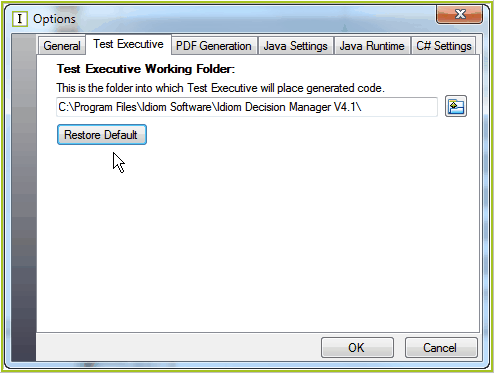
Figure 7-7(c) Test Executive Working Folder Tab
5. |
The remaining settings should default: •General Settings - Default = Localhost, Server Port 42564 •PDF Generation - Default = 'not selected' •C# Settings - Default = Internal Compiler Selected |
6. |
Click on the 'Ok' button > Test Executive pane. |
Tip |
If you are using Java and receive the compile error 'java.lang.OutOfMemoryError: Java heap space' please check and then set the appropriate arguments for the Java compiler. |
 to locate the desired Java files, or click on the Autodetect JDK
 button to default find the latest version of Java.