Merging a Repository Template |
  
|
Merging a Repository Template |
|
This function enables the master licensee to provide the sub-licensee with periodic updates to the repository template – e.g. new releases of an application provided by a vendor. The sub-licensee can merge this new version of the repository template with their existing customized version, to obtain the new updates provided by the vendor, while preserving their own customized changes. This process is performed in a way that minimises any work required to align potential conflicts identified.
If you are a sub-licensee importing a repository template for the first time, you will simply complete the normal import process.
To update an existing repository template with a new version, you will need to
STEPS
1. |
Under your sub-license, import and open your existing repository template that includes your customisations as you would any other repository. |
In our example import and open the ‘VehicleInsuranceControl Template1’ repository template that was provided by the vendor and then customized in the sections above (the new decision ‘Current Promotion Discount’ added to the ‘Young Driver Loading’ decision model).
2. |
Click on Tools | Wizards | Update Repository Template > Repository Update Wizard |
3. |
Follow the wizard instructions. First, specify where in your directory the source file for the new template can be found. |
In our example this is the new version of the repository template provided by the vendor – the file ‘Vehicle Insurance Template2’. In this example make just one change to this version of the repository template provided by the vendor – lower the threshold age for a young driver from 25 to 21 (this is a change to the ‘Add Young Driver Loading’ formula on the “Determine Young Driver Loading’ decision in the ‘Young Driver Loading’ decision model). Note that the repository name for this file is still ‘VehicleInsuranceControl Template1’, as the repository name must match the repository name of the existing repository template for the merge function to operate.
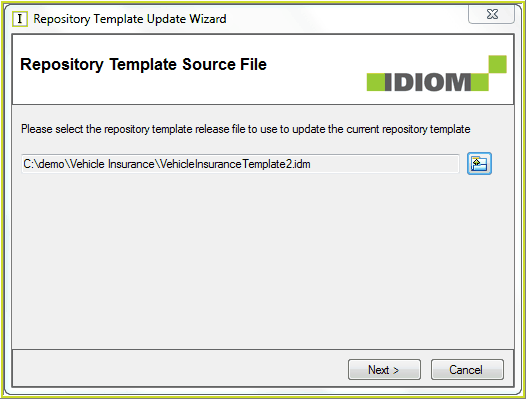
Figure 6-110(a): Repository Template Wizard
4. |
Click on Next |
You will be advised if you need to perform Schema Maintenance on your new schema. In our example schema maintenance is not required, as the changes to the imported new repository template do not conflict with the existing repository template.
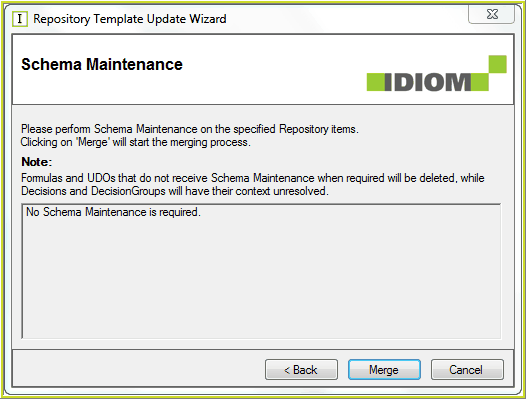
Figure 6-110(b): Schema Maintenance Warning
5. |
Click on Merge to proceed to merge the imported new version of the repository template into the existing customized version. |
6. |
Click on Finish once the update is complete. |
In our example we now have the changes from the new repository template (the changed young driver threshold age (21) in the ‘Add Young Driver Loading’ formula)
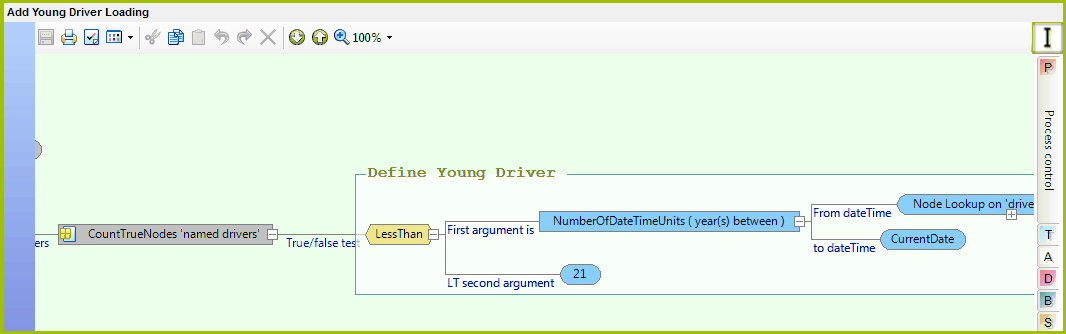
Figure 6-110(c): Changes in the new repository template.
We have also retained the customized changes made to the existing repository template (the new ‘Current Promotion Discount’ decision in the ‘Young Driver Loading’ decision model).
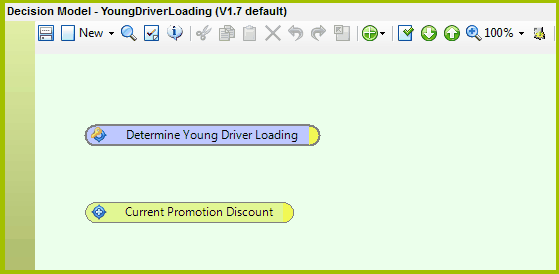
Figure 6-110(d): customized changes are retained.