Creating a Repository Template |
  
|
Creating a Repository Template |
|
This is a role undertaken by the master licensee.
For a master licensee to create a repository template for a sub-licensee:
STEPS
1. |
Ensure you are logged into the Decision Manager under a master license (not a sub-license), and then open the repository that you wish to create a repository template for. Note that you will need to have imported this repository into the decision manager while logged in under the master license. |
For our example, we will import and then open the ‘VehicleInsuranceControl’ repository, and rename it to ‘VehicleInsuranceControl Template1’ (click on Repository | Administration to access the screen where you can do this). Once you have finished, click on Save. This saved repository will become our repository template in the steps below.
2. |
Click on Tools | Wizards | Repository Template Wizard > Template Options screen |
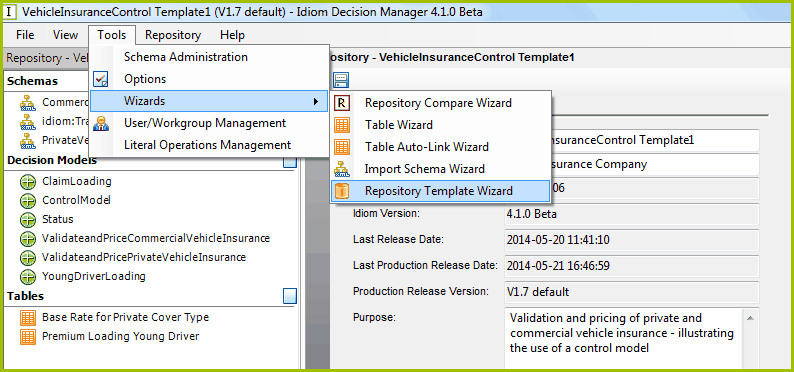
Figure 6-105: Opening the Repository Template Wizard
3. |
Enter a name for your new template in the Template Options screen, and check the box if you want to allow sub-licensees to be able to modify Decision and Decision Group Actions. |
In our example we will name this template ‘VehicleInsuranceControl Template1’, and not allow sub-licensees to modify the Decision and Decision Group actions.
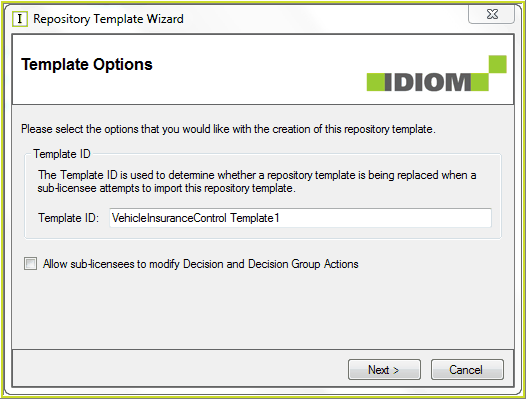
Figure 6-106: Template Options screen
4. |
Click on the Next button > Destination screen |
5. |
Click on the Browse Icon to specify where you wish to save your template in your directory |
6. |
Enter a name for your file e.g. ‘VehicleInsurance Template1’ (note that this is just the name of the file and does not have any connection with the repository itself, and in this example the file name is different to the repository name) |
7. |
Check the ‘Encrypt ?’ checkbox if you wish to save the file in encrypted form. |
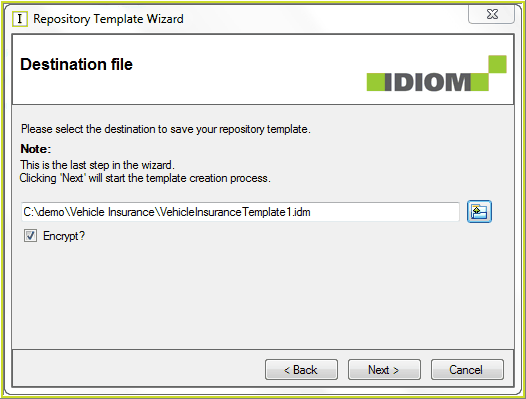
Figure 6-107 Encrypt Checkbox
8. |
Click on the Next button > Creation Completed screen |
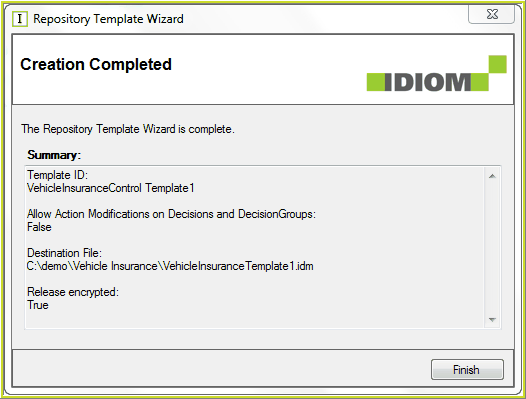
Figure 6-108: The Creation Completed screen
9. |
Click on the Finish button |
The repository template has now been created. This file can now be sent to a sub-licensee, who can then import and open it, and then add their own customisations.