Importing and Modifying a Repository Template |
  
|
Importing and Modifying a Repository Template |
|
A master licensee can modify a repository template that they have created in exactly the same manner as a standard decision model. When all modifications are complete the repository template is saved again by following the actions in the steps above for “Creating a repository template”
In our example we will demonstrate how a sub-licensee can import a repository template that a master licensee (e.g. a vendor) has created and provided to them, and then modify it to incorporate their customisations.
As a sub-licensee using a sub-license import the repository template in the same manner that you would import a standard repository. You may need to change the name of the repository if it matches an existing repository. If you are not a valid sub-licensee for this repository template a dialog box will appear advising you that the repository can only be opened by specific sub-licensees.
STEPS
1. |
Import the repository template ‘VehicleInsuranceControl Template1’ created above. After the repository has been imported and opened, and the ‘Control Model’ decision model opened, it will show as below. |
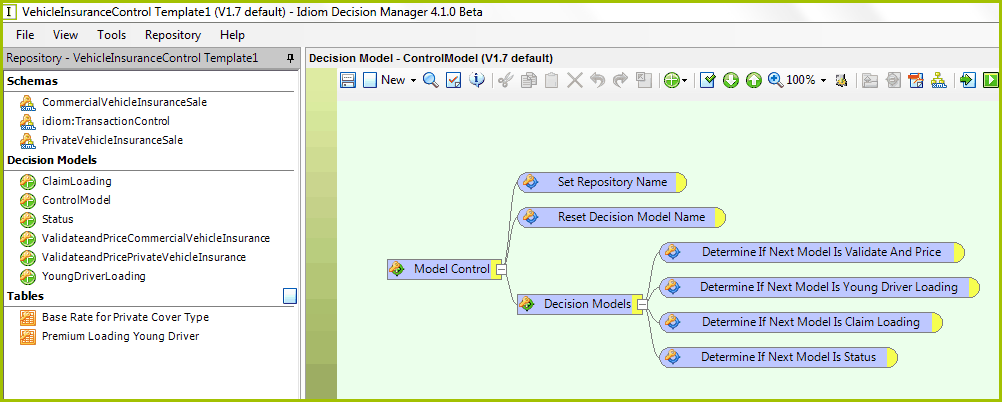
Figure 6-109(a): Import repository template
Sub-licensees are limited to only making additive changes, as illustrated above where:
•All items in the Explorer pane show as being locked away
•There are no options available to create new schemas or decision models
•The palette displays all decisions and decision groups imported as being unavailable for editing.
Sub-licensees cannot:
|
•Create new decision models |
|
•Delete decision models |
|
•Add or remove Schema references |
|
•Change the order of existing schema references |
|
•Modify or remove existing Formula references |
|
•Create schemas or change the Visibility or Output View of customized schemas nodes. |
|
•Modify or delete existing Formula versions, Formulas and UDOs |
|
•Modify or delete existing Tables or Table contents |
|
•Perform any Repository Administration |
Sub-licensees can:
|
•Modify existing decision and decision group Actions (if the vendor has checked the 'Allow' check-box when Creating a template repository ) |
|
•Attach new Formula references to existing decisions and decision groups |
|
•Add new decisions and decision groups (as new root processes or as additions to the existing template structures) |
|
•Add new Formula versions to Formulas |
|
•Create new Formulas and new UDOs |
|
•Create new Tables and new Table contents for existing Tables |
|
•Add new Users and Workgroups to the repository and make any necessary modifications or deletions as well |
|
•Add Variable nodes to or removed them from a Customized schema. |
As an example the sub-licensee could add a new decision group and / or decision to a decision model and save it. In our example add a new ‘Current Promotion Discount’ decision (and a corresponding formula) to the ‘Young Driver Loading’ decision model as shown below. Note that this new element added by the sub-licensee shows as being editable, whereas the ‘Determine Young Driver Loading’ decision that came with the template is not editable.
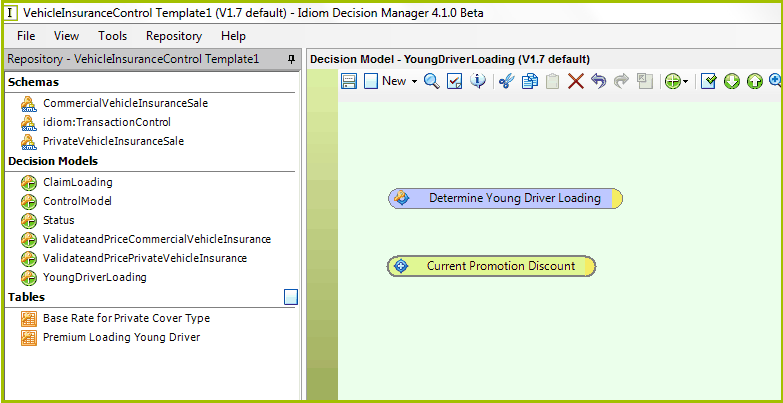
Figure 6-109(b) Examples of elements editable by a sub-licensee.