Logging onto IDIOM using Integrated Security |
  
|
Logging onto IDIOM using Integrated Security |
|
Integrated Security enables the User to automatically log on to a selected server on a Domain without having to enter their user name or password, provided the Users computer is also logged on to the same domain. Integrated Security is not available in Single sign-on mode.
Configure the Server:
1. |
Go to the directory containing the Decision Server files (this will be ‘..\Program Files\Idiom Software\Idiom Repository Server V4.5’ – if the default directory settings were used when installing the Repository Server). |
2. |
Find the file 'appsettings.json', and open it with an editor (i.e. Notepad). |
3. |
Edit the Authentication Type from 'Basic' to 'Integrated': <Authentication Type="Integrated" />. |
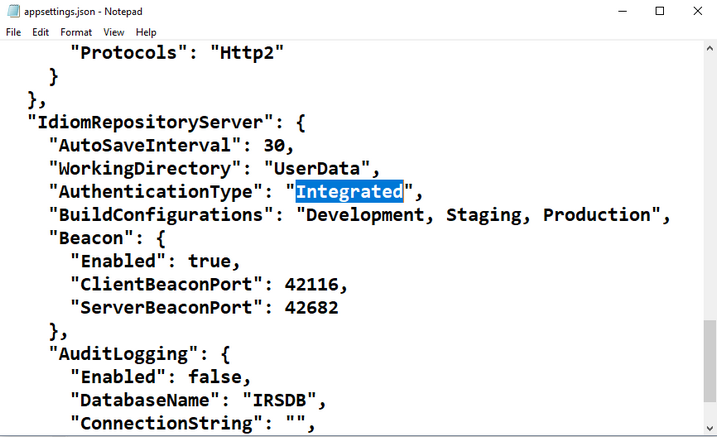
Figure 2-4(a): Server appsettings.json screen
4. |
Exit and Save. |
5. |
Restart the Idiom Server (See Logging in to Idiom). |
Log on using Integrated Security
1.Make sure you are logged in to your computer using your domain account e.g. john.jones@idiomsoftware.lan
2.Make sure you have a user on your repository server that has the same name as your domain login e.g. 'john.jones' (without any domain name). See Creating New Users.
3.Start the IDIOM Decision Manager by clicking on the desktop icon
4.Idiom will open the Splash screen with the User name preselected, and without the requirement to enter a password.
5.Should you wish to log in with a different User Name, tick the 'Use basic login' checkbox to change the User Name and enter a password.
Configure the Decision Manager Client:
An additional feature for users who always select the same User Name and Repository Server, you may wish to skip the splash screen entirely, and log directly in to the Decision Manager Desktop. You can do this by configuring the Idiom Decision Manager Client.
1. |
Go to the directory containing the Decision Manager configuration xml file ‘..:\Program Files\Idiom Software\Idiom Decision Manager V4.5\XML'. |
2. |
Find the file ‘IdiomConfig.xml’, and open it with an XML editor (i.e. Notepad). |
3. |
Change the AutoFind to 'False' to disable the server beacon finder: <AutoFindServer AutoFind="False">. |
4. |
Ensure the server IP Address is pointing to your ServerName so that it will automatically select and connect directly to your server: <ServerIPaddress>yourServerNameGoesHere</ServerIPaddress>. |
5. |
Exit and Save. |
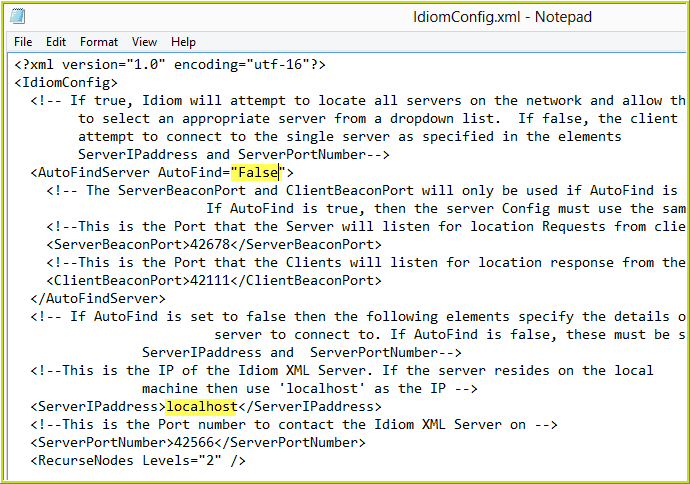
Figure 2-4(b): Decision Manager Config.XML screen
6.Follow the steps for logging on using Integrated Security above.
7.Idiom will automatically log in and take you directly to the IDIOM Decision Manager desktop.
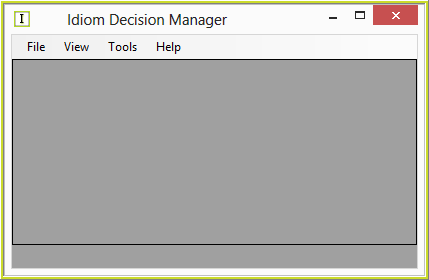
Figure 2-4(c): IDIOM Decision Manager desktop
Side-step Integrated Security Configuration:
When using the integrated security option, users can opt to not automatically log on if they hold down the left control button on the keyboard while starting up the decision manager.
This is to allow users the opportunity to instead log in with a different non-domain user account that is available on the server.