Logging onto IDIOM |
  
|
Logging onto IDIOM |
|
To log onto IDIOM:
1. |
Double click on the IDIOM icon on your desktop. |
Figure 2-3(b) Idiom Desktop Shortcut
IDIOM opens the login screen.
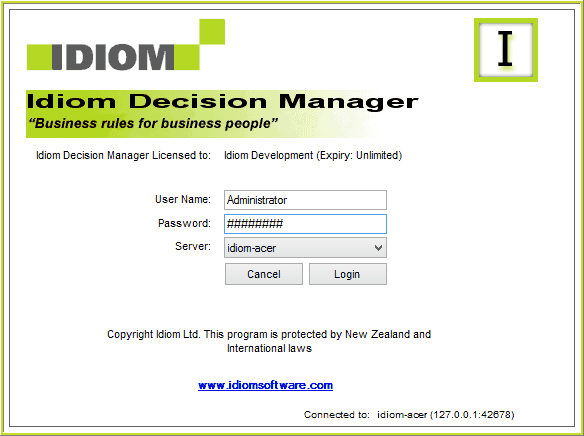
Figure 2-3(c): IDIOM login screen
The IDIOM login screen allows you to pick which Repository Server you wish to connect to. If the Server is installed on a local machine, it will be identified using the IP address or name of the local machine. If the Server is run on a network, it will be identified using the IP address or name of the network machine. Ask your System Administrator to identify your server.
2. |
Select the Repository Server that you will be using by opening the `Server' drop-down box. |
3. |
Enter your User Name and Password |
See Case Study Data for the user names and passwords that are associated with the Vehicle Insurance repository (these will need to be set up by your System Administrator).
4. |
Click on Login > IDIOM Decision Manager desktop. This is often referred to simply as the 'IDIOM desktop'. |
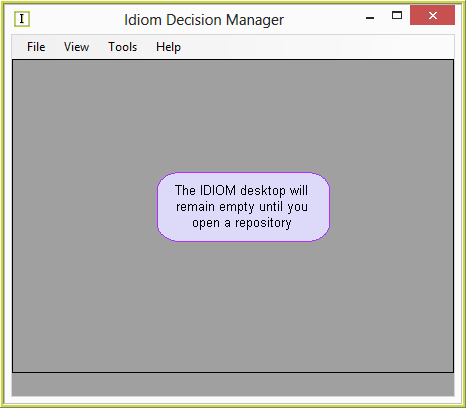
Figure 2-3(d): IDIOM Decision Manager desktop
The 'File' menu item can be used from the desktop to:
•create, import, open or delete a repository
•change a User name or password
•set up print options
•exit the IDIOM Decision Manager.
The Tools menu item can be used from the desktop to:
•perform Schema Administration
•set up the Decision Manager's options
•access the Repository Comparison Wizard
•maintain User/Workgroups
•View Online Users
•Literal Operations Management
The Help menu item can be used from the desktop to:
•access the Help Manual
•go to the Idiom Website
•send feedback
•register a new license (See Registering a New License)
•view details about the IDIOM Decision Manager.