Formula (and UDO) variables |
  
|
Formula (and UDO) variables |
|
Right clicking on any operation in the formula palette allows the user to click on a 'Set as Variable' menu-item, which then prompts the User to specify a name of the variable.
During runtime, any operation with a variable name specified will have its results written to the internal variables schema.
A new “FormulaVariable” operator is available for retrieving the value stored, for use in any other formula or UDO”.
Steps to create and use formula variables:
1. |
Open the VehicleInsuranceControl.idm repository and add the Internal Schema to each decision model as detailed above (if not already done). |
2. |
Open the decision model “Young Driver Loading”. This is where we will change a formula to create, and then re-use a Formula Variable |
3. |
Open the Formula “Determine Young Driver Loading” |
4. |
Drag the existing formula “AddPCT” away. Do not delete this branch as yet. |
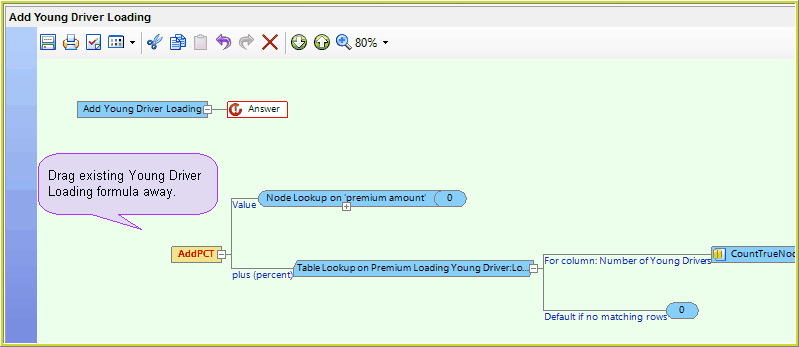
Figure 4-62(a) Drag the original formula away
We will modify this formula to add conditional logic that will include the creation of a formula variable, that is then used in a new calculation when the number of Young Drivers is >0
5 |
Add an IF condition to the formula, and create a formula variable within it a.Add an “IF” followed by a 'GreaterThan' operator at the start of the formula b.Drag the “CountTrueNodes” operator from the disconnected branch ('AddPCT') to be the first argument of the““GreaterThan”, and enter “0” as the second argument c.Right click on the “CountTrueNodes” operator and select “Set as Variable”, and then enter the name “NumberOfYoungDrivers” – Note: this has defined the result of the “CountTrueNodes” operation as the formula variable ‘NumberOfYoungDrivers” which will be stored in the Internal Schema and can be re-used in this and other formulas. |
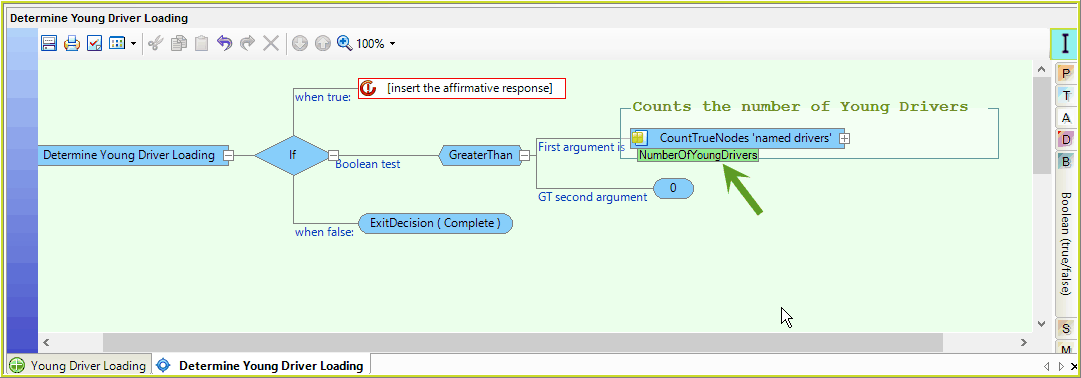
Figure 4-62(b) Right click on the “CountTrueNodes” operator and select “Set as Variable”
6 |
Update the 'when false' branch of the formula so that if there are no Young Drivers you will Exit the Decision completely |
7 |
Update the 'When True' branch of the formula the as follows: a.Drag the 'AddPct” operator (from the Arithmetic operators menu) on to the first element. b.Drag the “Value (premium amount)” node from the schema as the Value element. c.Drag the “StringToInt” operator (from the Miscellaneous tab) on to the 'Plus (percent)' element. Note that the “StringToInt” is necessary here as all Formula variables are defined as Strings in the Internal Schema. a.Drag the new 'FormulaVariable (String)' Operator from the Miscellaneous tab b.Enter the name “NumberOfYoungDrivers” in to the Variable Name – this is the name of the Formula Variable we created earlier (Step 5(d) above) |
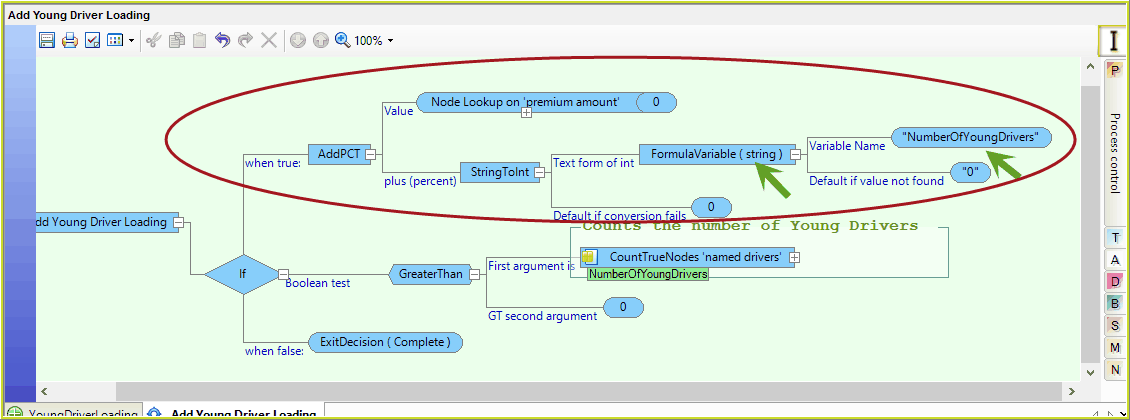
Figure 4-62(d) - 'When True' branch uses the 'FormulaVariable ' operator to retrieve information from the internal schema.
8. |
Save the updated formula |
The 'When True' argument is now using the “NumberOfYoungDrivers” formula variable that is stored in the Internal Schema
Perform an In-line Test
1)Run in the debugger (See In-line testing) with a sample file that has one or more young drivers ie:
i.Set the Premium amount to $10,000.00
ii.Add two Named Drivers under the age of 25 years
iii.Run the debugger
The “NumberOfYoungDrivers” FormulaVariable value is populated in the Internal Schema:
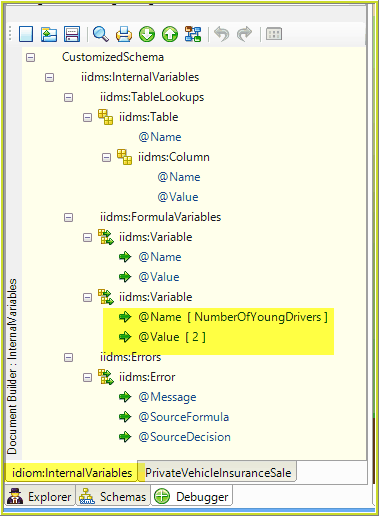
Figure 4-62(e) Formula Variable 'NumberOfYoungDrivers' in the Internal Schema
The in-line testing results will show a % increase in the premium based on the “NumberOfYoungDrivers” value recorded in the internal schema.
In this case, it is 2%:
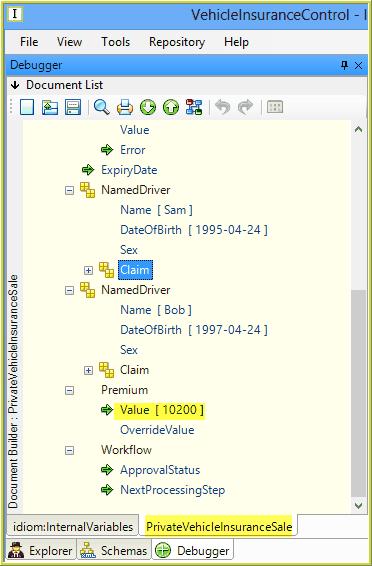
Figure 4-62(f) Debugger Results