Exporting Table Data to XML files |
  
|
Exporting Table Data to XML files |
|
To generate an XML file of the table:
STEPS
1. |
Click on the Generate Documents button |
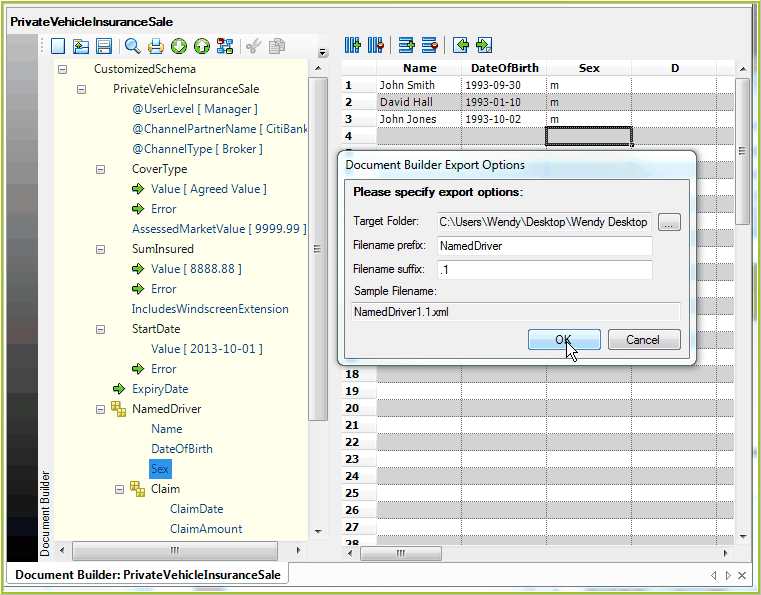
Figure 3-54: Document Builder Export Options dialog box
2. |
Select a Target Folder to save your file(s) to and enter an appropriate file prefix and suffix. |
3. |
Click on OK |
Your documents will be saved in the nominated directory. A separate XML document, using the values entered in to the document builder pane, will be created using the different information recorded in each row of the data table.
The documents will be numbered consecutively from 1 to however many rows there are.
The prefix will appear in front of the document number, and the suffix will appear after, in this instance:
•NamedDriver1.1.XML
•NamedDriver2.1.XML
•NamedDriver3.1.XML
You can then open these documents as Input files for In-line testing (see Conducting an In-line test).
 > Document Builder Export Options dialog box