Editing Existing Table Contents |
  
|
Editing Existing Table Contents |
|
To edit an existing set of Table contents:
STEPS
1. |
Double click on the Young Driver Loading table > Table contents pane. |
2. |
Double click on the set of Table Contents to edit in the Associated Table Contents pane ( 2003-10-31) > Table contents pane. |
3. |
Select the row you wish to change and make the desired change to the data values e.g. change the loading percent for 2 young drivers (row 2) to 30% instead of 25% |
4. |
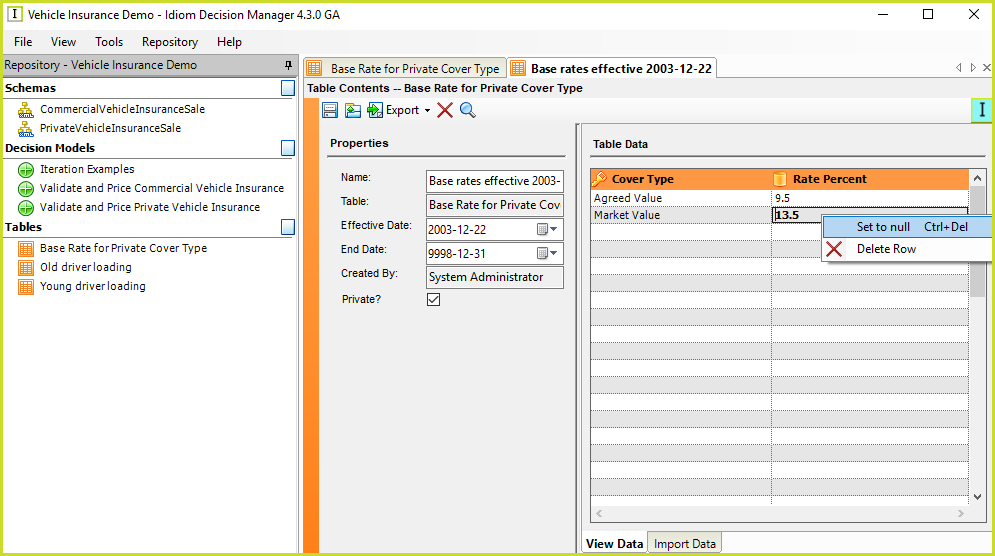
Right-click on a cell to set its value to null or to delete a row. Only data values can be set to null. Null can not be assigned to key values. |
5. |
Click on the Save button |
NOTE: As a Formula Expert, you will be able to edit any Table contents that have been assigned to your workgroup or to `global'.
•You can re-sort the table data - simply click on the header of any column to sort by that column (ascending or descending). Re-sorting modifies the underlying data and users will be requested to save table contents if they wish to keep their sort.
•You can delete all of the data within a Table contents by clicking on the Clear button  .
•The IDIOM icon at the top right hand corner of the Workspace will turn aqua if you have made any changes to the Table contents but have not clicked on the Save button.
Tips |
If the table content changes need to be versioned, or if they are many, then we suggest that you change table contents by exporting the table to CSV, update in Excel, and then reimport as a new set of effective dated table contents. Please see the discussion on Versioning for an expansion on this topic. You can re-sort the table data - simply click on the header of any column to sort by that column (ascending or descending). You can search the table data by clicking on the Search Icon |
