Add table content data |
  
|
Add table content data |
|
In the steps above we created the default settings for a new set of table contents. This completed the creation of a container for a new set of table contents, and in this section we will populate that empty container with a set of contents.
The creation of the default settings above required the authority of a workgroup or systems administrator. If the ‘Private ?’ setting was not checked then any user can add the contents. If the ‘Private ?’ setting was checked then only a member of the workgroup that created the default settings can add the contents (or the system administrator). If the system administrator created the default settings and checked ‘Private ?’ then only the system administrator can add the contents.
1. |
Continuing from step 7 above right-click on the first field under the Cover Type column in the Table Contents Data pane and select 'New' |
2. |
Type `Agreed Value' in the Cover Type column. |
3. |
Enter `3' in the Rate Percent column. |
4. |
Repeat steps 1-3 above to enter a Cover Type of `Market Value' and a Rate Percent of `8'. |
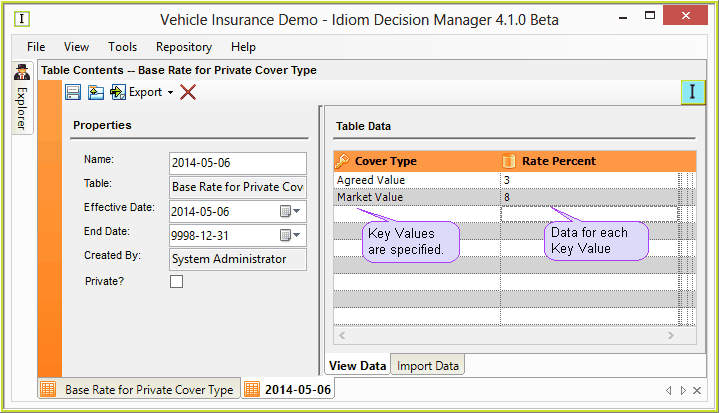
Figure 6-94: Set of Table contents with added data
5. |
Click on the Save button. |
If you close the Table Contents pane, your table will now appear in the 'Associated Table Contents' pane under the same name as that of the default table.
Tips |
1.You can also import data into the Table contents pane instead of adding it manually. See Importing data into a Table contents. 2.You can re-sort the table data - simply click on the header of any column to sort by that column (ascending or descending). Re-sorting modifies the underlying data and users will be requested to save table contents if they wish to keep their sort. 3.To delete all of the rows in the table, click on the Clear button 4.To export the table in either XML or CSV format, click on the Export button |

