Creating UDO's From the customized Schema Pane |
  
|
Creating UDO's From the customized Schema Pane |
|
We will explain the concept of UDO's using the Vehicle Insurance repository. We will re-create the Error Message UDO, which specifies the text that will appear in each error message associated with the PrivateVehicleinsuranceSale schema.
This particular UDO does not have one particular error message associated with it. Instead it contains a `parameter' called `MessageContent'. When a decision designer wishes to create the error message, they simply fill in the appropriate text for the parameter.
STEPS to create a UDO from the customized Schema pane:
1. |
Right-click on a node (e.g. PrivateVehicleInsuranceSale) and select New User Defined Operation > New UDO dialog box |
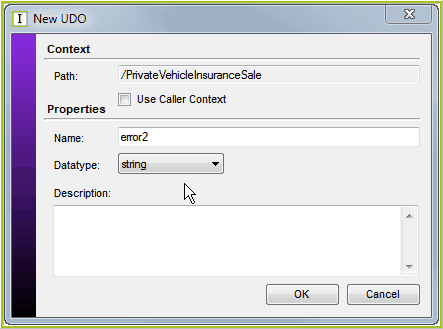
Figure 4-65: UDO dialog box
2. |
Enter the name of your UDO and select its datatype from the drop-down box (you can also insert an optional description). We will name our UDO error2 and ensure that the datatype is String. |
The 'Use Caller Context' check-box allows you to specify the context in which the UDO will be used.
· |
If the Use Caller Context check-box is ticked, the context will be set to the node of the formula that uses the UDO. |
· |
If the Use Caller Context check-box is empty, the context will be set to the node that the UDO is associated with. This is the default setting. |
3. |
Click on OK > UDO Palette |
4. |
Start building the UDO. |
In our case, we will simply copy the existing UDO:
a. Open the Error Message UDO
b. Right-click on the concatenate operator and select copy
c. Return to the error2 UDO
d. Right-click on the `Answer' box and select Paste.
If you are not copying an existing UDO, you will build the UDO just like you build a normal formula, that is, by using operators from the hover tabs.
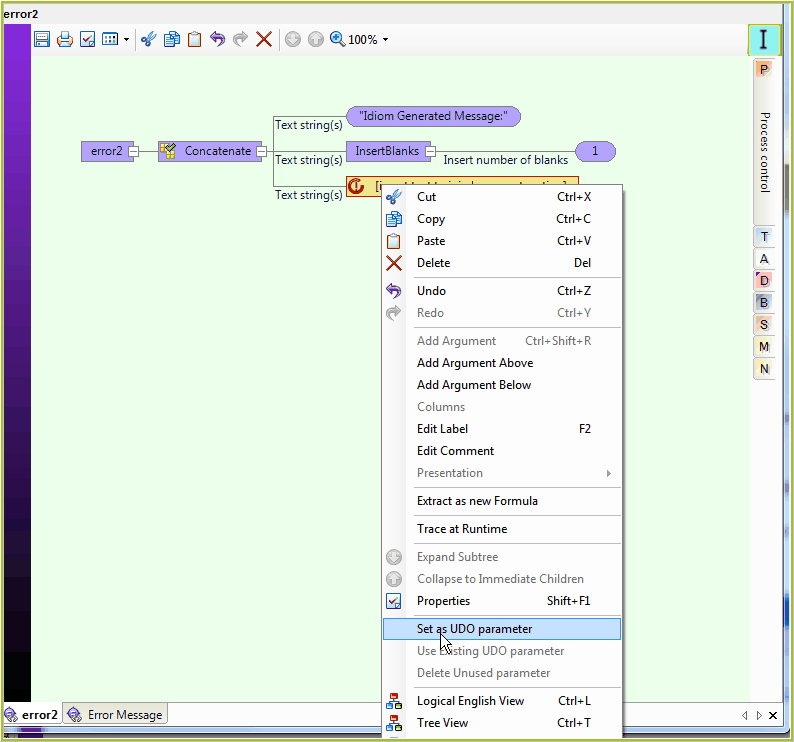
Figure 4-66: UDO Palette
5. |
Set the UDO parameter(s) by right-clicking on a formula results box and selecting `Set as UDO Parameter' |
6. |
Enter descriptive text in the UDO Parameter box e.g. 'MessageContent'. This says that some text/value is required by the UDO parameter when it is used (see Using a UDO). You can also use existing parameters by selecting these from the right-click menu (if these exist). |
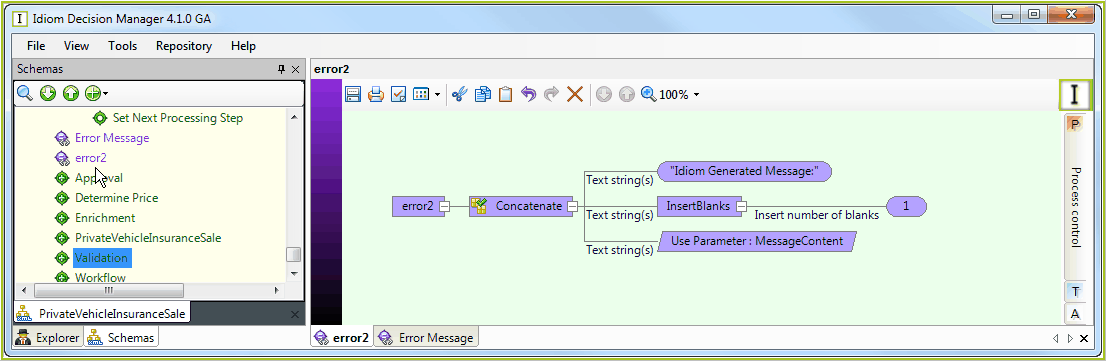
Figure 4-67: The error2 UDO
7. |
Save the UDO |
The UDO appears on the schema under the node it was created from.
NOTE: Remember that a UDO has a floating context.