Creating New User Groups |
  
|
Creating New User Groups |
|
New Groups can be created and Users with the same User Roles assigned to them. Users, and even other user Groups, can be added to a user Group to allow for permission inheritance.
STEPS to create a new user Group:
1. |
Select Tools | User/Workgroup Management > User/Workgroup Management window |
2. |
Open the 'Group' Tab |
3. |
Right-click in the Group section of the window and select New Group |
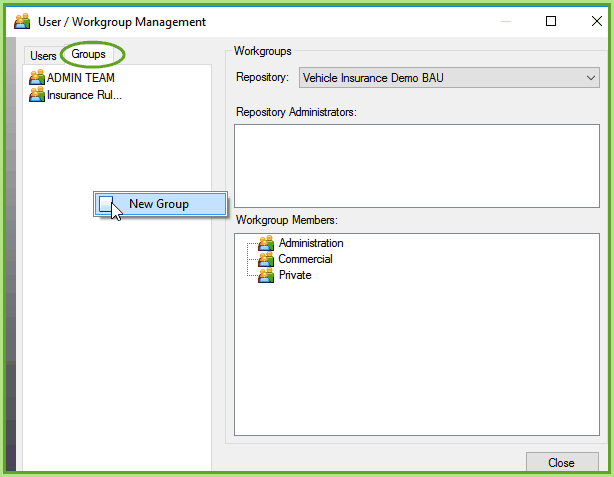
Figure 6-32(e): Right-click in the Group section of the User/Workgroup Management window to add a New Group
4. |
Enter the new user Group name, and save. |
5. |
Right click on the new User Group that appears and click Update Group |
6. |
Select the individual Users and/or other User Groups you wish to add to this Group, and click Save. |
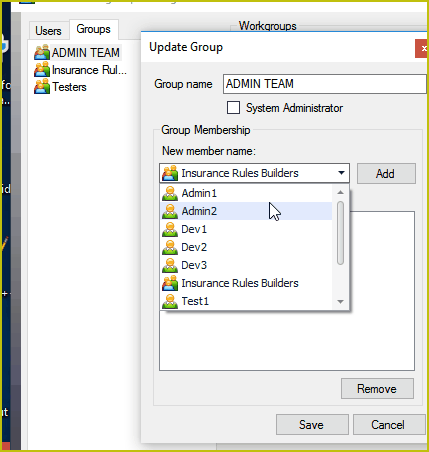
Figure 6-32(f): Allocate other Users / User Groups to this new Group.
7. |
The new user Group can then be added to any Workgroup, by simply dragging it across to the Workgroup and selecting a User role |
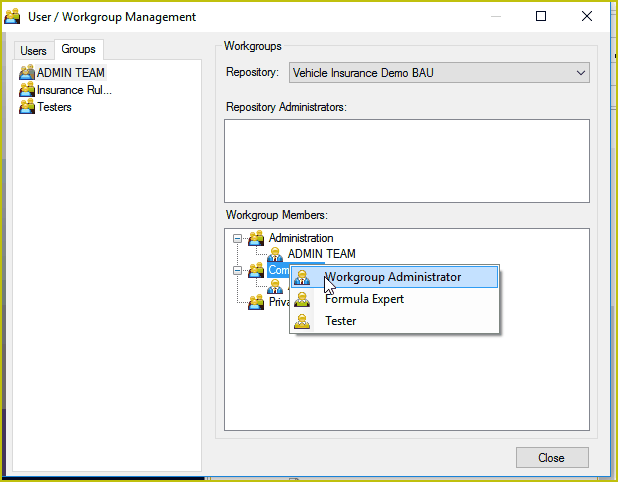
Drag the Group on to a Workgroup and assign a User Role.