Audit logging |
  
|
Audit logging |
|
The Repository Server can be configured to record an audit trail of all changes made to the repositories with the Decision Manager. The Audit logging can be turned on after the installation of the repository server by editing the C:\Program Files\Idiom Software\Idiom Repository Server V4.5\appsettings.json file. Please refer to end of the Reconfiguring IDIOM chapter for instruction on how to turn on the auditing. An example of the settings with the AuditLogging enabled is:
"AuditLogging": {
"Enabled": true,
"DatabaseName": "IRSDB",
"ConnectionString": "Data Source=DESKTOP-PJN5991\\MSSQLSERVER2017;Initial Catalog=IRSDB;User ID=sadmin;Password=sadmin;",
"MaxHistoricImageCount": -1
}
NOTE: You have to manually restart the IdiomServer to effect changes made to the AuditLogging settings in appsettings.json.
Press the Windows key and type Services to access the Services dialog box. Scroll to the IdiomServer 4.5 service. Right-click on the services and select Restart.
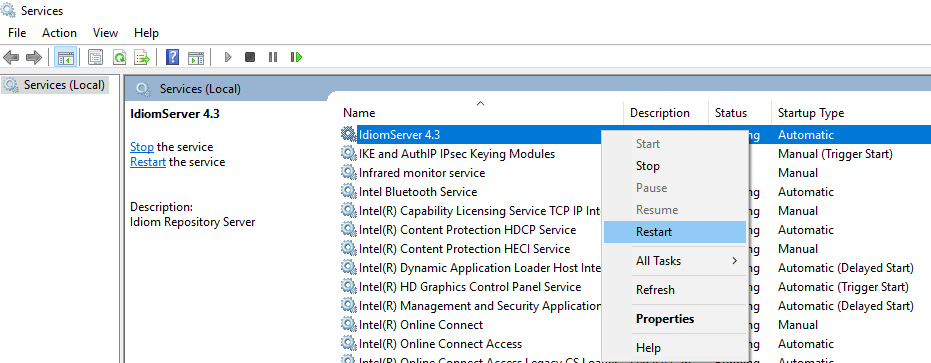
Restart IdiomServer
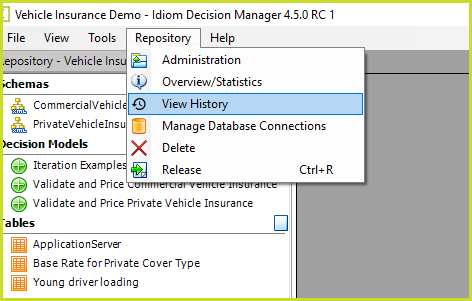
The Audit logging can be accessed with the Repository > View History menu option: