Creating a New Workgroup |
  
|
Creating a New Workgroup |
|
System Administrators can create new workgroups when they are logged in to a particular repository. They can also create workgroups without being logged in to a repository. In either case, the steps followed will be the same. The only difference is that any workgroups created from within a repository will remain linked to that repository. Creating workgroups without being logged in to a repository allows creation of multiple repositories from a single screen and saves the Administrator having to log in to each separate repository.
In our example, we will create a new workgroup without logging in to any repository.
STEPS To create a new workgroup:
1. |
Log in to IDIOM |
2. |
Select Tools | User/Workgroup Management > User/Workgroup Management window |
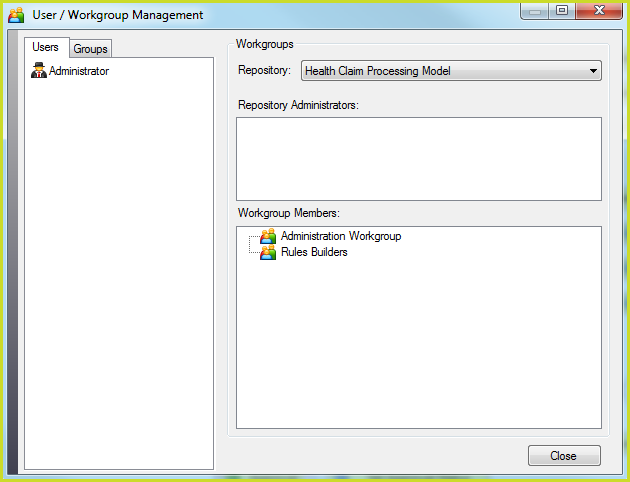
Figure 6-25: Opening the User/Workgroup Management window
3. |
Select the Repository that you wish to add the Workgroup to and right-click anywhere in the Workgroup Members window select New Workgroup > Add New Workgroup dialog box |
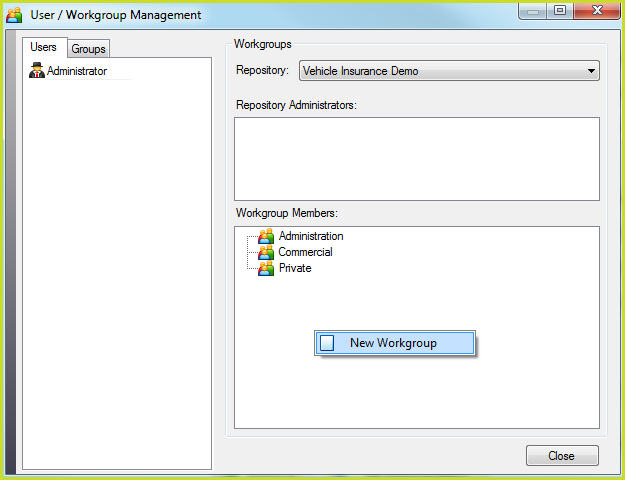
Figure 6-26: Right-click in the Workgroups section of the window to create a New Workgroup
4. |
Type in the name of the new workgroup in the Add New Workgroup dialog box |
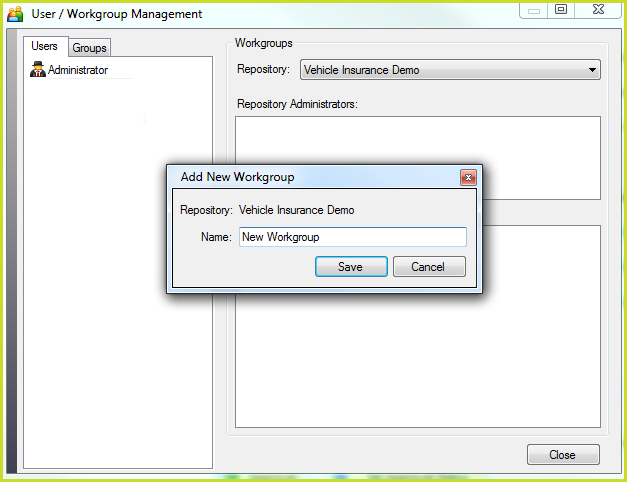
Figure 6-27: Entering the name of the new workgroup in the Add New Workgroup dialog box
5. |
Click on the Save button |
The new workgroup appears in the list of Workgroup Members.
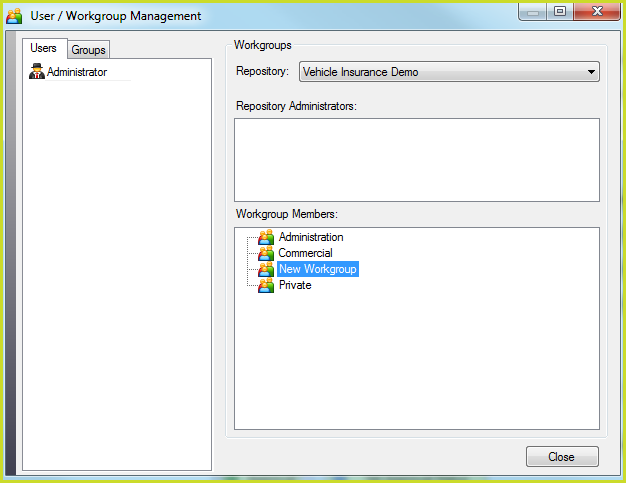
Figure 6-28: The new group appears in the list of groups
NOTE: When a System Administrator accesses the User/Workgroup Management window, an exclusive lock is obtained. An exclusive lock prevents all other Administrators from updating any workgroups. This is to ensure that data integrity is preserved. The exclusive lock protects against inconsistencies by disallowing situations where a Workgroup Administrator is adding/removing users to/from a workgroup that has already been deleted by the System Administrator. If Workgroup Administrators have already accessed the form, the server will not be able to obtain an exclusive lock for the System Administrator as some Workgroup locks are already allocated to these Workgroup Administrators. The server will present the following message to the System Administrator and the form shown above will not be displayed.
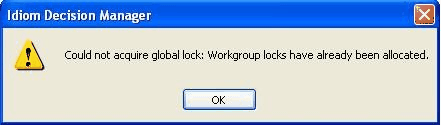
Figure 6-29: Dialog box advising of locked form
The server will only lock Workgroups that a Workgroup Administrator is in charge of when he/she accesses the User/Workgroup Management form. Workgroup locks are allocated on a first-come-first-served basis. The Workgroup Administrator that has the Workgroup lock is the only one allowed to update that Workgroup. The names of the locked workgroups are greyed out in the list of workgroups and are tagged with [Locked].
The locks are released once the form is closed. In the unlikely event of a system crash, all Workgroup locks will be released once the user session timeouts.